
React 10 – Tables
npm install ag-grid-react
The previous command installs ag-grid-react and ag-grid-community packages
Create a new project:
npm create vite@latest react_tables
Create the components folder and the MyTables.tsx file:
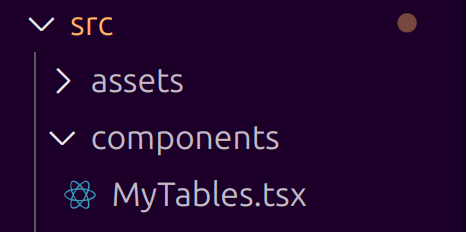
MyTables.tsx:
function MyTables() {
return (
<div className="MyTables">
    <table>
        <tr>
            <th>Product</th>
            <th>Price</th>
            <th>Quantity</th>
        </tr>
        <tr>
            <td>Mother board</td>
            <td>30.27</td>
            <td>4</td>
        </tr>
        <tr>
            <td>Retrogame console</td>
            <td>24</td>
            <td>2</td>
        </tr>
        <tr>
            <td>Smart TV</td>
            <td>300</td>
            <td>5</td>
        </tr>
    </table>
</div>
);
}

export default MyTables;
Insert the MyTables component into the App.tsx file:
import './App.css'
import MyTables from './components/MyTables'

function App() {
  return (
    <>
      <h1>MyTables component:</h1>
      <MyTables/>
    </>
  )
}

export default App

The table will look like this:
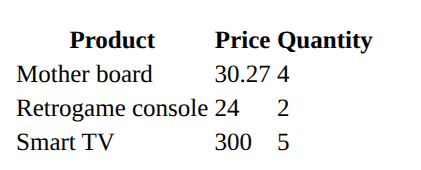
Its appearance will be changed a bit thanks to some CSS lines. MyTables.css:
.MyTables {
    width: 50%;
    height: 20vh;
    display: flex;
    justify-content: center;
    align-items: center;
}

table {
    border: 4px solid yellowgreen;
    width: 100%;
}

th {
    background-color: green;
    color: white;
    border-bottom: 1px solid black;
}

td {
    text-align: center;
    border: 1px solid blueviolet;
}
Inside the MyTables.tsx file, insert the following line at the beginning of the file:
import "./MyTables.css"Now the code needs to be changed because it will now be passed both the table headers and the data as parameters.
App.jsx:
import './App.css'
import MyTables from './components/MyTables'
function App() {

  const header_data = [
    { id: 'product', label: 'Product name' },
    { id: 'price', label: 'Unit price' },
    { id: 'quantity', label: 'Quantity' },
  ]

  const rows_data = [
    { product: 'Alexa', price: 30.27, quantity: 4 },
    { product: 'Ok google', price: 24, quantity: 2 },
    { product: 'Xiaomi', price: 300, quantity: 5 },
  ]

  return (
    <>
      <h1>React Tables</h1>
      <MyTables header={header_data} rows={rows_data} />
    </>
  )
}

export default App
First column left alignment. The rest right alignment:
.MyTables {
    width: 50%;
    height: 20vh;
    display: flex;
    justify-content: center;
    align-items: center;
}

table {
    border: 4px solid yellowgreen;
    width: 100%;
}

th {
    background-color: green;
    color: white;
    border-bottom: 1px solid black;
}

td {
    text-align: right;
    border: 1px solid blueviolet;
}

td:first-child,
th:first-child {
    text-align: left;
    font-weight: bold;
}


td:not(:first-child),
th:not(:first-child) {
    text-align: right;
}
Bootstrap will be installed in the project:
npm install react-bootstrap bootstrap
data.jsx:
export const header_data = [
{ id: ‘product’, label: ‘Product name’ },
{ id: ‘price’, label: ‘Unit price’ },
{ id: ‘quantity’, label: ‘Quantity’ },
]
export const rows_data = [
{ product: ‘Alexa’, price: 30.27, quantity: 4 },
{ product: ‘Ok google’, price: 24, quantity: 2 },
{ product: ‘Xiaomi’, price: 300, quantity: 5 },
)
}
MyTables.jsx:
import './MyTables.css'

const MyTables = ({ header, rows }) => {
    return (
        <div className="MyTables">
            <table>
                <thead>
                    <tr>
                        {header.map((head) => (
                            <th key={head.id}>{head.label}</th>
                        ))}
                    </tr>
                </thead>
                <tbody>
                    {rows.map((row, index) => (
                        <tr key={index}>
                            <td>{row.product}</td>
                            <td>{row.price}</td>
                            <td>{row.quantity}</td>
                            <button type="button" class="btn btn-danger m-2">Delete</button>
                        </tr>
                    ))}
                </tbody>
                <button type="button" class="btn btn-success m-2">Add</button>
            </table>
        </div>
    )
}


export default MyTables